Difference between revisions of "Import Image from device"
m |
m |
||
| Line 1: | Line 1: | ||
| − | Click the New Button [[File:NewButton.jpg]] on toolbar of your clinical record, such as an IBID Record or a Significant Event. | + | Click the New Button [[File:NewButton.jpg]] on the toolbar of your clinical record, such as an IBID Record or a Significant Event. |
Select ''Get Images from device'' and click the "OK" button. | Select ''Get Images from device'' and click the "OK" button. | ||
Revision as of 11:42, 11 April 2019
Click the New Button  on the toolbar of your clinical record, such as an IBID Record or a Significant Event.
Select Get Images from device and click the "OK" button.
Choose device required from the Select Your Device drop down list.
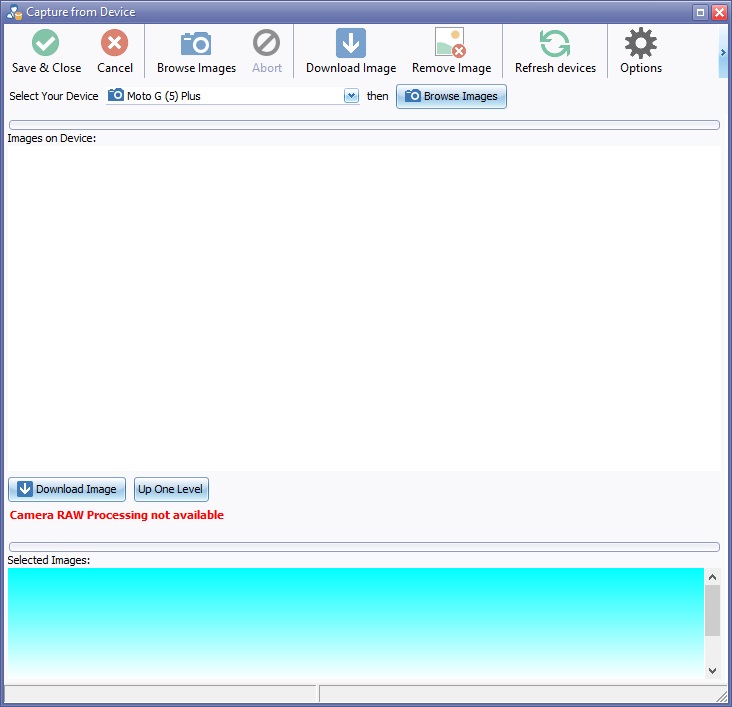

A  button will appear, if using a scanner a
  button will appear
If using a scanner Click Acquire Image button. the images will appear in the preview section at the bottom of the Capture From Device box.

Select an image by clicking on it to highlight.
To upload multiple images
In the Capture Images from Device window, the list of thumbnails on the device will allow multiple selection:
a) Consecutive Images can be selected by clicking on first image, and SHIFT-Clicking on the last image, which will select all images between the two, inclusive.
b) Non-consecutive images can be selected by clicking on the first required image and then CTRL+Clicking on subsequent images.
When the Download  is pressed, all the selected images will be downloaded to the bottom panel.
To enlarge the image for a closer look before downloading click the image in the Selected Images Box, a Preview will open with an Options Tab showing the Device types and Options.

Click Save & Close to insert images in to patient folder or Click Remove Image form the Capture From Device Toolbar
