Creating an Import Report
- Ensure you have verified the connection settings after the initial installation
- Ensure your Algorithm Settings are where you need them to be
- Press the Create Import Report button.
The progress of the report generation will show at the foot of the screen and will indicate the count of new, merged, ignored or failed patient records.
The Report
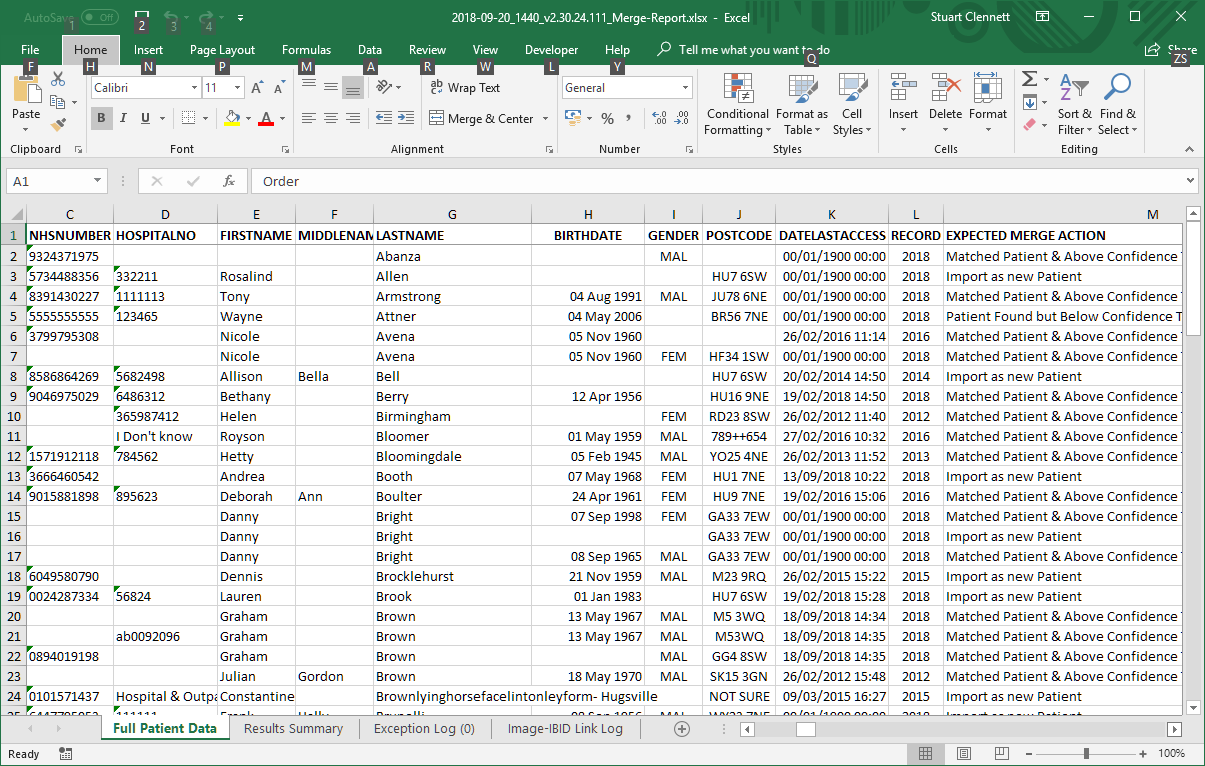
Full Patient Worksheet
COLUMN |
INTERPRETATION |
NHS Number to Record Year |
This is a simple output of the demographics from the exported Telemarque data file (PATIENT_MASTER.JSON). |
Expected Merge Action |
See table below for details of the possible values for Expected Merge Action |
Aquila Patient_ID & Aquila Target Patient Summary |
These two columns display the AquilaCRS patient details where a match has been found by the algorithm but was either above or below the required threshold Normal text - this means the patient match was above the required confidence threshold Italics - this means that the patient match was below the required confidence threshold. (this value is output to aide the user if amendments to the AquilaCRS record can be made to improve the match potential) |
SQL Subset Count |
This is the count of the initial (very broad) search for patients in the AquilaCRS. This will often be very large and is the subset of patients from which the matching patient may be chosen. |
Top Matches |
This is the count of the number of patients from the SQL Subset that have an algorithm score above the Required Confidence Threshold. This should be a very low number, often 1 or 0. |
Top Score |
This the highest score achieved by the number of TM patient records detailed in the Top Matches column |
Req'd SCore |
This is just the Required Confidence Threshold. It will be same for every record and is included to facilitate further record by record analysis, e.g. subtract the Top Score from the Required Score for an analysis of how close some records get |
Algorithm Steps |
This is the output of the internal log detailing all the steps taken, all the matches and mismatches. Useful to refer to in case of situations where you need to understand the process taken & why the algorithm score was given. This text is in a structured format (JSON) but is also fairly human-readability. |
Expected Merge Action |
Explanation |
Import as new Patient |
Could not locate a match at all in the AquilaCRS database. Importing the TM records as a new patient |
Single Patient Found : merge with selected patient |
Located a patient in the AquilaCRS database, the algorithm score is above the threshold; assume it's the same patient and merge the TM & AquilaCRS data. |
Medium Quality Demographics (no search possible): import as new |
The source data from Telemarque was not of sufficient quality to attempt to locate a matching patient in AquilaCRS. Importing as a new AquilaCRS patient. |
Poor Quality Demographics with Images: import as new. |
The source data from Telemarque was below the quality threshold required to import, but the TM record has images attached, so will import as a new AquilaCRS patient, with the images. |
Poor Quality Demographics no images: assume empty do not import |
The source data from Telemarque was below the quality threshold required to import and the TM record has no images. Will not import. |
Error occurred |
If a programming error has occurred during the importing of data for this patient, this status is shown. Please contact support. All errors are logged to the Exception Log sheet. |
Unknown - fallen through the cracks |
The result of the import & merge operation is unknown. Further investigation of the algorithm log will be necessary to establish the cause. |
The expected merge action with total record counts is also summarised on the Results Summary page.
Results Summary Worksheet
This worksheet shows a summary of how many records per Expected Merge Action, and a detailed list of the algorithm settings, including the run date and software version.
Exception Log Worksheet
Any programming errors during the import process are listed here & will be required for analysis in the event of a problem
Image-IBID Link Log Worksheet
This worksheet only appears after the Live Import, not the Create Import Report
COLUMN |
DETAILS |
TM Patient ID |
The internal patient ID from the Telemarque database (source ID) |
Aquila Pt ID |
The internal patient ID from the AquilaCRS database (target ID) |
Image-Title |
The "description" field from the Telemarque image data set. |
IBID_MAIN_ID |
The internal ID of the AquilaCRS IBID record. Only completed if a matching IBID record is found. |
Trauma-Network-ID |
The Trauma Network ID of any matched IBID record |
Image-Date |
The date of the Telemarque image. This is taken from the JPEG EXIF data, if available, otherwise the TM Upload Date is used. |
IBID-Pre-Date, Min-Date, Max-Date, Post-Date |
These four columns identify the range of dates of any matched IBID record. The Pre-Date is 4 weeks before the Min-Date. The Min-Date is usually the Date of Injury or similar**. The End-Date will be the Discharge or Death Date or similar**. The Post-Date is the date 6 weeks after the End-Date. |
Match Type |
If there's an matched IBID record, then this field will explain where in the date ranges the match was made (within the iBID record, in the Post IBID grace period or within the Pre-IBID Grace Period) |
Source File/Library File |
Two filenames, identifying where the image was taken from and where it was ultiimately stored (if the media library is stored on the File System. |
** - all dates within the IBID record are used to identify the date range for each IBID record, not just those mentioned.
What Doesn't The Import Report Do?
Please note that this import report does not test any of the following
- Image Importing & Linking
- TM Specialist dataset imports
- Merging Demographic Data
Created with the Personal Edition of HelpNDoc: Write EPub books for the iPad