Getting Started
To start the TM-Aquila Merge application, double click on this icon:

Initial Settings Check
When the application is installed for the first time on a specific server (including when it's moved from one server to another) it's always a good idea to check the settings are correct.
The application needs to communicate with the AquilaCRS database and the exported Telemarque data files; both need to be accurately configured.
If the exported TM data file has been migrated from one machine to another, you may need to manually update these settings.
As long as this app is installed on the same server as AquilaServer is up and running, then the Aquila Connection settings should be picked up automatically.
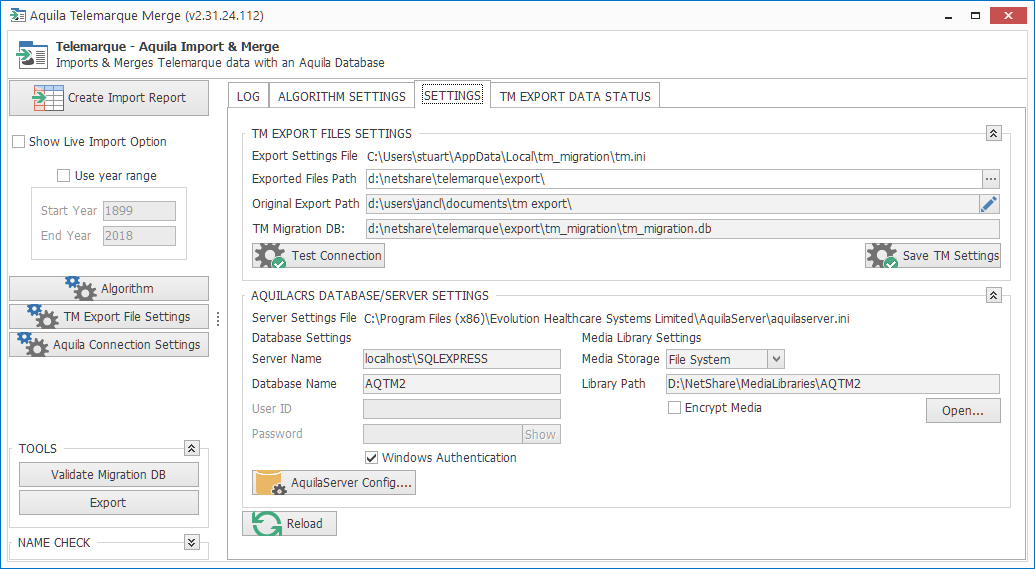
TM Export File Settings
Export Settings File |
This file is where all the settings are saved between runs. You can move this file from your old server to the location shown to easily copy the settings from one machine to another. |
Exported Files Path |
This is the root folder of the Telemarque Exported Data. This folder will contain the PATIENT_MASTER.JSON file, and a sub-folder called tm_migration that will contain the tm_migration.db file which is vital for the program to run. |
Original Export Path |
This is the name of the root folder to where the Telemarque Data was originally exported. This value is important as the exported data is to be transferred between two different servers and the app needs to be able to translate the file-names that have been saved with the exported data. For safety, this field is read only until the pencil icon is clicked. |
TM Migration DB |
This value is read only, as it refers to the tm_migration folder beneath the Exported Files Path |
Test Connection |
This button will test that the TM Migration DB can be located and opened okay. Any failure at this point and the application cannot be used until the problem is solved |
Save TM Settings |
If you have adjusted any of the settings, then use this button to save them to the Export Settings File |
AquilaCRS Database/Server Settings
Database Settings
These setting should be picked up automatically from the installed AquilaServer product.
Media Library Settings
Pay particular attention to these settings as this affects where and how any imported images are stored. The required settings are as follows:
Media Storage |
Set to File System |
Library Path |
Set this to the folder where all AquilaCRS media files will be stored. This should have been setup by your IT department, and will most likely be empty at this stage. |
Encrypt Media |
This should be unticked as you have chosen to not encrypt on-disk images. |
See also:
Created with the Personal Edition of HelpNDoc: Free help authoring environment